
Guides · Getting Started
Getting Started
ChatCraft connects directly to Minecraft Java Edition servers from your Android phone, iPhone, or iPad — no PC or Minecraft launcher required.
1. Sign in with an account
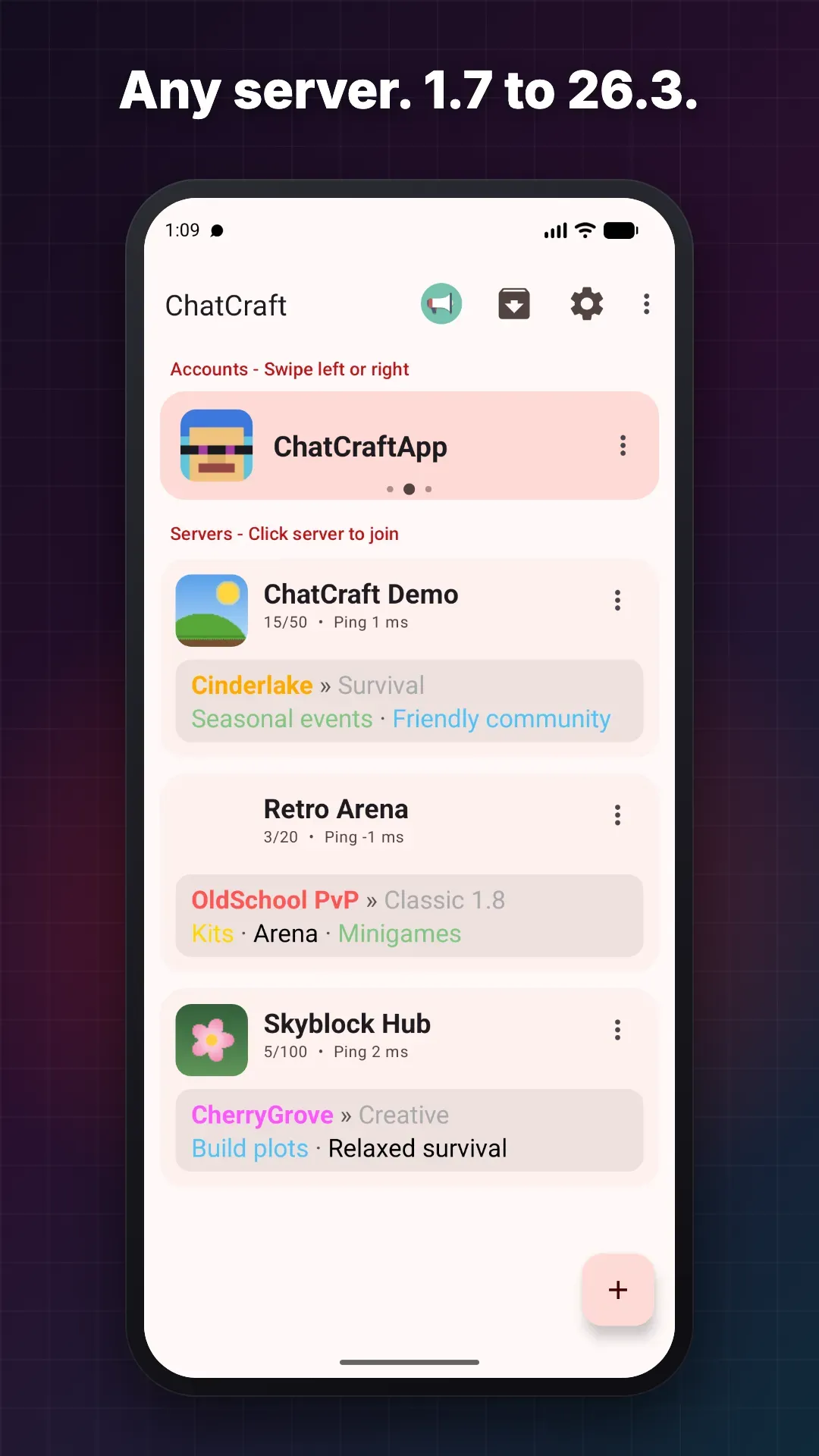
Before joining a server, add an account on the home screen. You can swipe between saved accounts from the home screen at any time.
- Microsoft account: Sign in with a Microsoft account that owns Minecraft Java Edition. ChatCraft automatically refreshes the sign-in when it expires.
- Offline account: Enter a username only to join servers running in offline (cracked) mode.
On the free tier, you can keep 1 account on your phone and 2 saved servers. ChatCraft Pro unlocks unlimited accounts and more than 2 saved servers. (Microsoft accounts signed in on a paired ChatCraft Computer do not count toward the phone’s account limit.)
2. Add your first server
Tap the add button on the home screen and fill in your server details:
- Name: Any display label for your server list.
- Address and port: The server hostname or IP and port (default Java port is
25565). - Version: The Minecraft Java Edition version the server accepts.
- Forge: Turn on the Forge handshake flag if you are joining a Forge modded server.
- Notify the server you are using ChatCraft: On by default; can be toggled per server in the server form.
3. Joining Forge modded servers
ChatCraft supports the Forge handshake so you can connect to modded Java Edition servers that check your mod list:
- Enable the Forge flag in the server form.
- Open Server menu > Edit mods for that server.
- Add the name and version for each required mod.
ChatCraft handles the Forge handshake and mod list so you can chat and interact with server menus, but it does not run client-side gameplay mods.
4. First-time chat and navigation tips
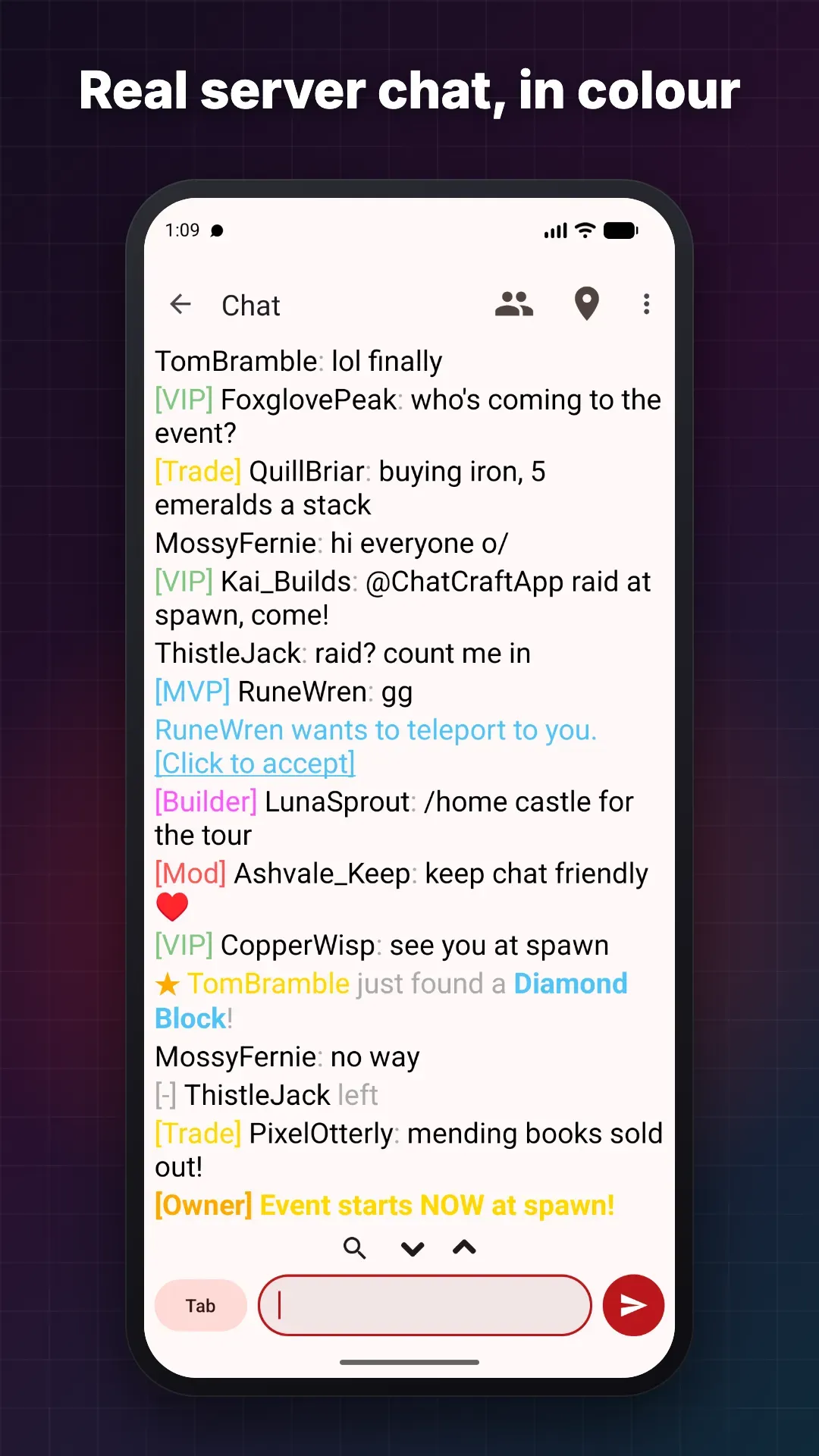
Once connected, use the chat screen tabs (Chat, Player list, Movement, Inventory, and Utils) to interact with your server:
- Full colour and clickable messages: Tap links to open them in your browser, tap commands to run them, or tap suggested commands to fill the message box. Hover text can be displayed and copied.
- Tab-complete: Tap the Tab button to request command, argument, and player-name suggestions directly from the server.
- Message length: ChatCraft enforces Minecraft’s chat length limit —
100characters before Minecraft1.11, and256characters from1.11onward. - Search and player actions: Use the chat search bar to filter saved messages, tap a player in the Player list to pre-fill
/msg <name>, and long-press a chat line to copy it or visit its links. - 2D minimap and Inventory: View the 3×3 chunks around you on the top-down map (movement buttons are free for the first minute of each session) and browse chests or server shop menus in the Inventory tab.
Next steps
- Need to stay connected while your screen is locked? Read the Staying Online & AFK guide or set up ChatCraft Computer.
- Want to automate on-connect commands or keyword alerts? Read Automation & Alerts.
- Sharing a server with friends? See Join Links & QR Sharing.