
Guides · Computer
ChatCraft Computer Setup
ChatCraft Computer is a lightweight companion agent for the ChatCraft phone app. It keeps your Minecraft Java Edition sessions connected 24/7 on a computer that stays on — even when your phone is locked, closed, or offline — while your phone acts as an end-to-end encrypted remote control.
Choose your platform
See the ChatCraft Computer downloads or install directly for your operating system below.
Windows (Windows 10 & 11)
- Install ChatCraft Computer from the Microsoft Store.
- Launch the app — a window opens displaying your pairing QR code.
- Optional: Start at login is off by default. To start ChatCraft Computer automatically when Windows boots, enable it in Windows Settings > Apps > Startup.
macOS
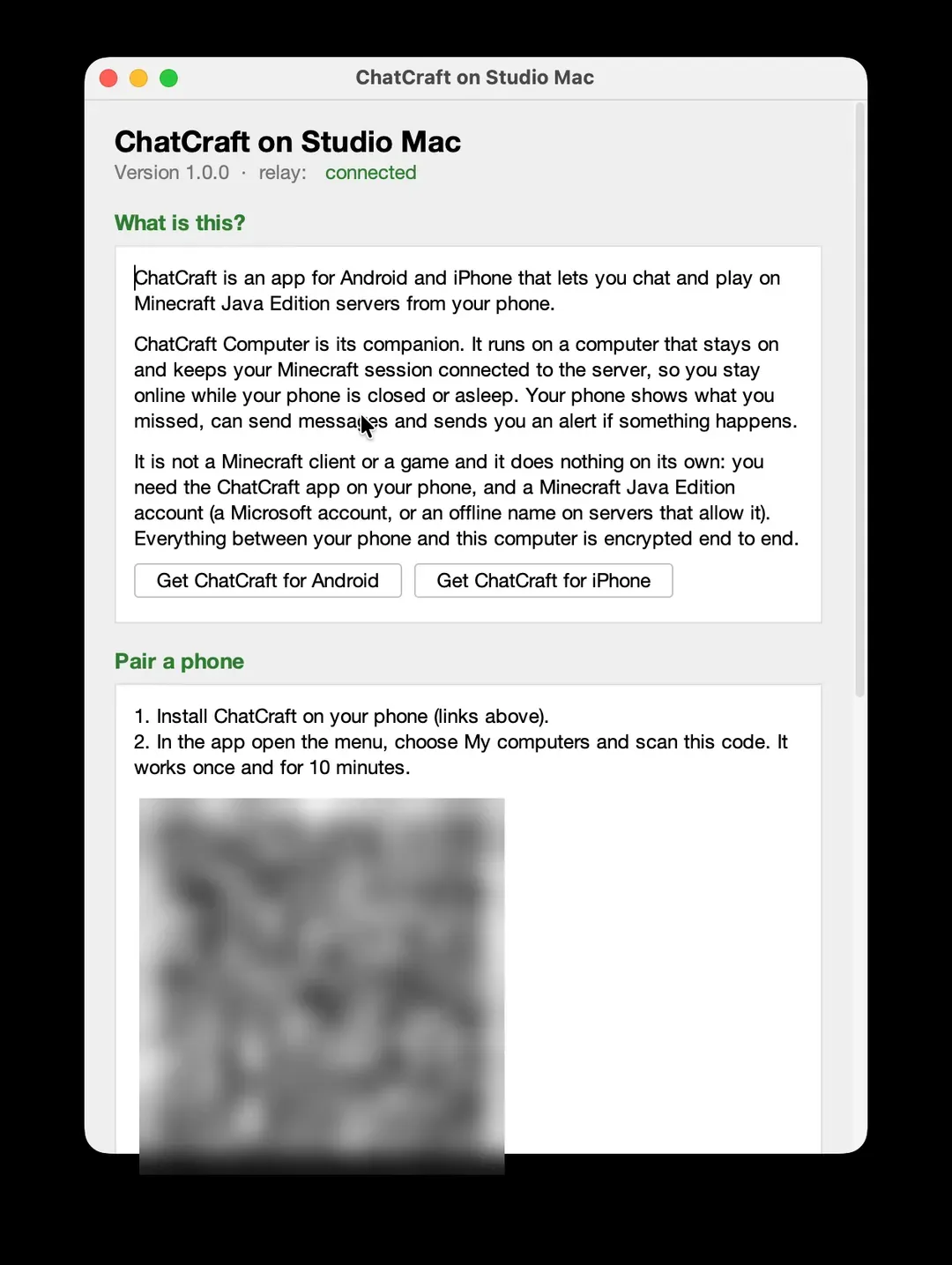
- Download the signed and notarized ChatCraft Computer macOS DMG.
- Drag ChatCraft Computer into your Applications folder and open it.
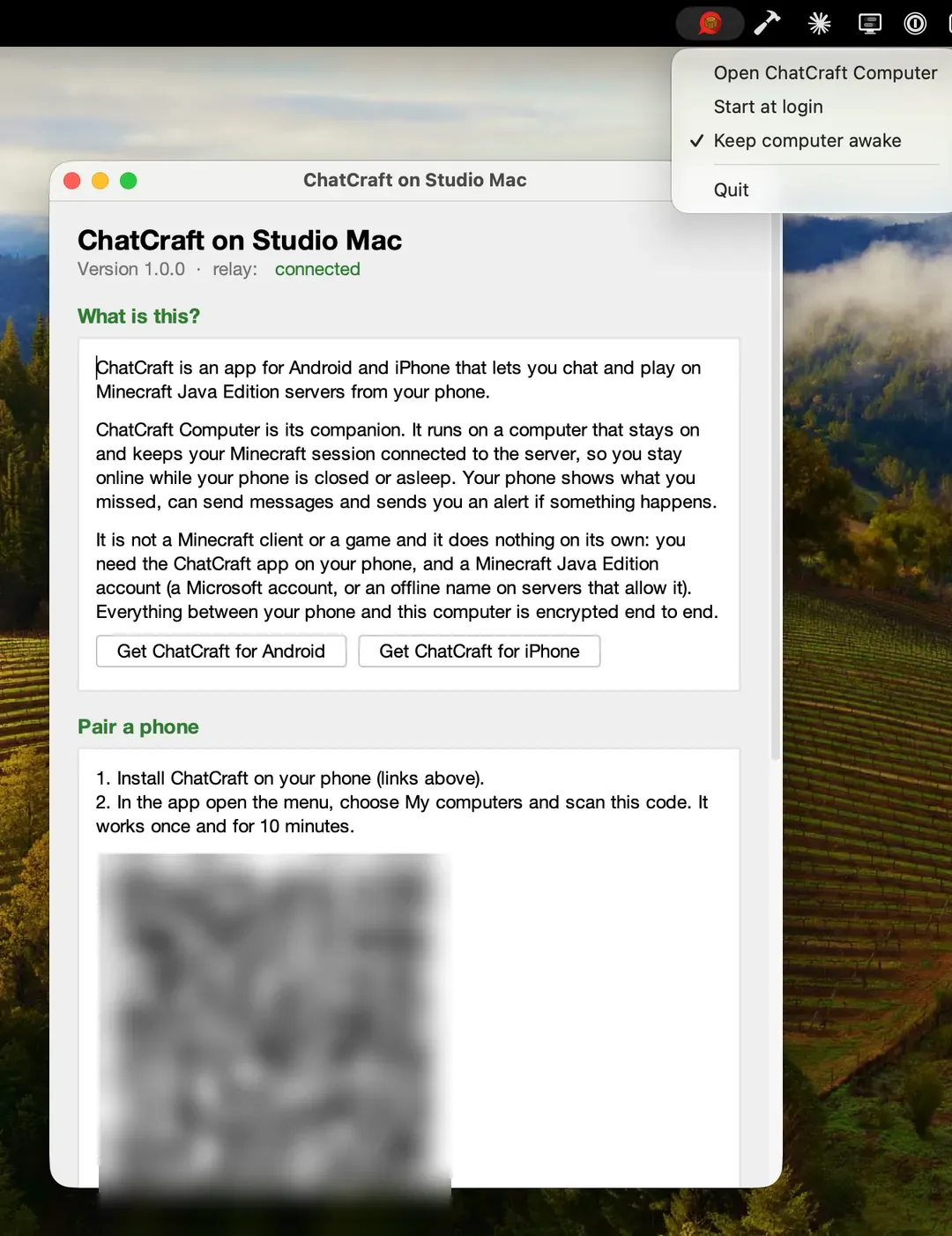
- The app displays a pairing QR code and adds a lightweight status item to your macOS menu bar.
Linux, Raspberry Pi & NAS (Docker)
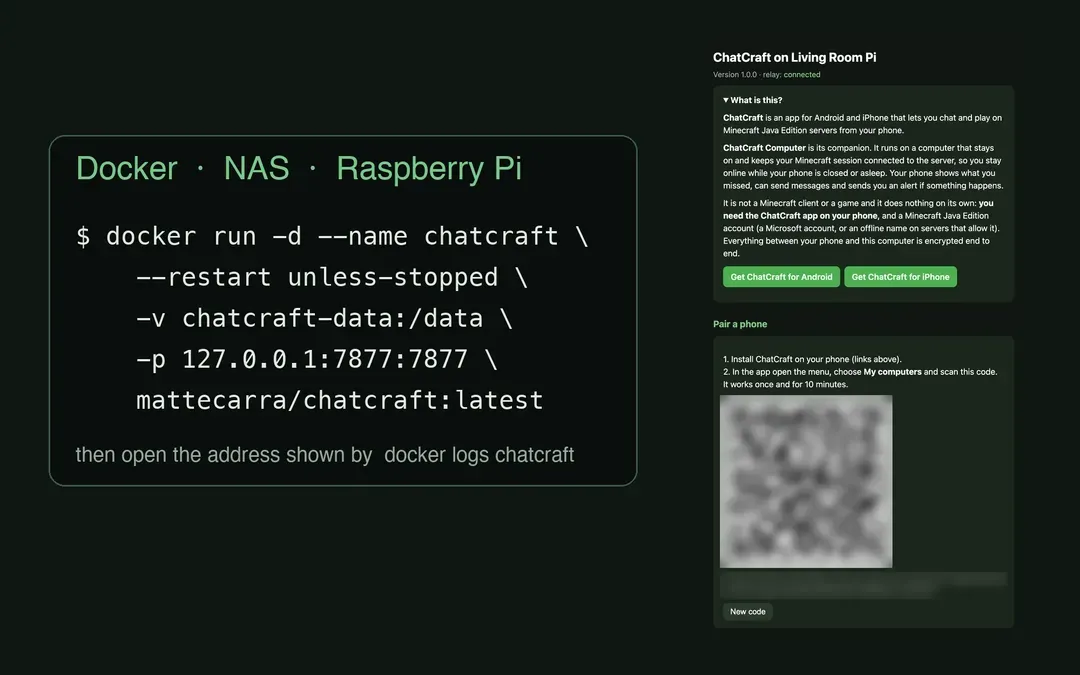
Docker is the supported way to run ChatCraft Computer on Linux servers, Raspberry Pi, and NAS devices. Start the container with a persistent data volume bound to loopback port 7877:
docker run -d --name chatcraft --restart unless-stopped -v chatcraft-data:/data -p 127.0.0.1:7877:7877 mattecarra/chatcraft:latestAfter starting the container, check docker logs chatcraft to see the local pairing URL, then open http://127.0.0.1:7877 in your browser to view the pairing QR code.
Pair with your phone
You can pair up to 3 phones with a single ChatCraft Computer install:
- Open ChatCraft Computer so the pairing QR code is visible (valid for 10 minutes, single-use).
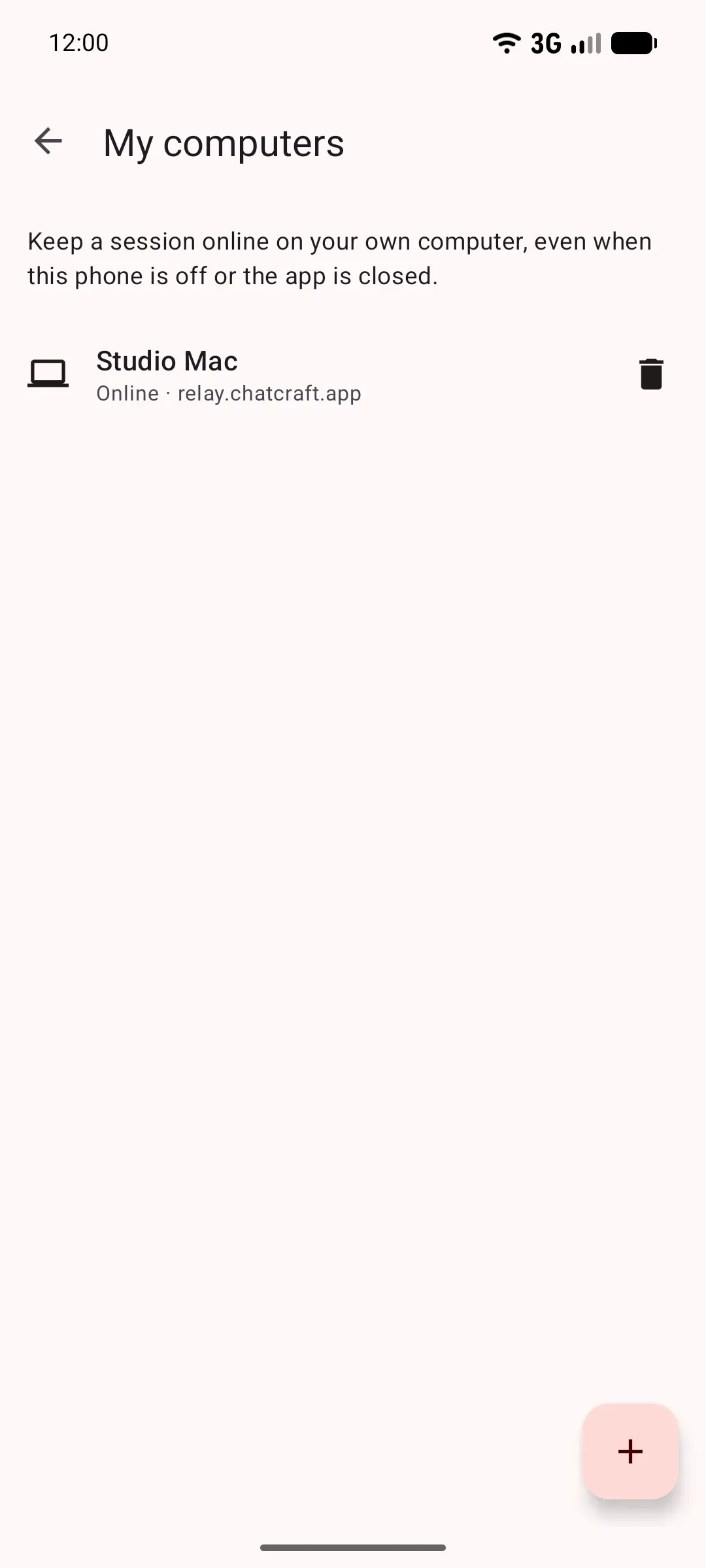
- In the ChatCraft app on your Android phone, iPhone, or iPad, open Home screen menu > My computers > Add a computer.
- Scan the QR code shown by your computer.
- Edit any saved server (or add a new server) and set its Run on field to that computer.
When you join that server using a Microsoft account, your phone prompts you to approve signing in on the computer so the computer can hold the live session. Microsoft accounts signed in on a computer do not count toward the phone’s account limit.
What works on a computer session
Remote sessions give you chat, player list, inventory, 2D map, movement, Tab-complete, and session settings right from your phone. Even when your phone is asleep, ChatCraft Computer sends push alerts for:
- Disconnects and failed reconnects
- Low health
- Chat keywords
- Duplicate logins
- Expired Microsoft sign-in
- The computer going offline
Privacy, encryption, and trial
- End-to-end encrypted: Everything between your phone and your computer travels through an end-to-end encrypted tunnel. The relay (
relay.chatcraft.app) only forwards ciphertext and cannot read your chat. - Sign-in stays local: Your Microsoft sign-in stays on your computer, and chat history lives only on your computer and phone.
- Updates: ChatCraft Computer notifies you when a new version is available; it does not auto-update itself.
- Free trial & Pro: Installing and pairing ChatCraft Computer is free and includes 5 minutes of connected trial time per install. Ongoing computer sessions require ChatCraft Pro purchased inside the ChatCraft mobile app.
For full overview details and platform links, visit the ChatCraft Computer page.