
Guides · Playing & AFK
Automation & Alerts
ChatCraft includes built-in tools for running routine commands, repeating messages, scheduling inventory clicks, and receiving notifications when something happens on your server.
On-connect commands
Use on-connect commands to automatically send messages or commands right after joining a server (for example switching to a hub sub-server or running an allowed command):
- Open Home screen menu > Settings > On connection settings.
- Add each command or message you want sent after joining.
- Configure the delay between commands so the server has time to process each line.
You can also enable Send /spawn after joining (off by default) to send /spawn automatically on connect.
Recurrent messages or commands
To repeat a message or command at a regular interval while you are connected:
- Open Home screen menu > Settings > Recurrent messages or commands.
- Add the message(s) or command(s) you want repeated.
- Set the delay between cycles.
Recurrent messages and commands are included on the free tier. Keep your interval respectful of your server’s chat cooldown and anti-spam rules.
Scheduled inventory clicks
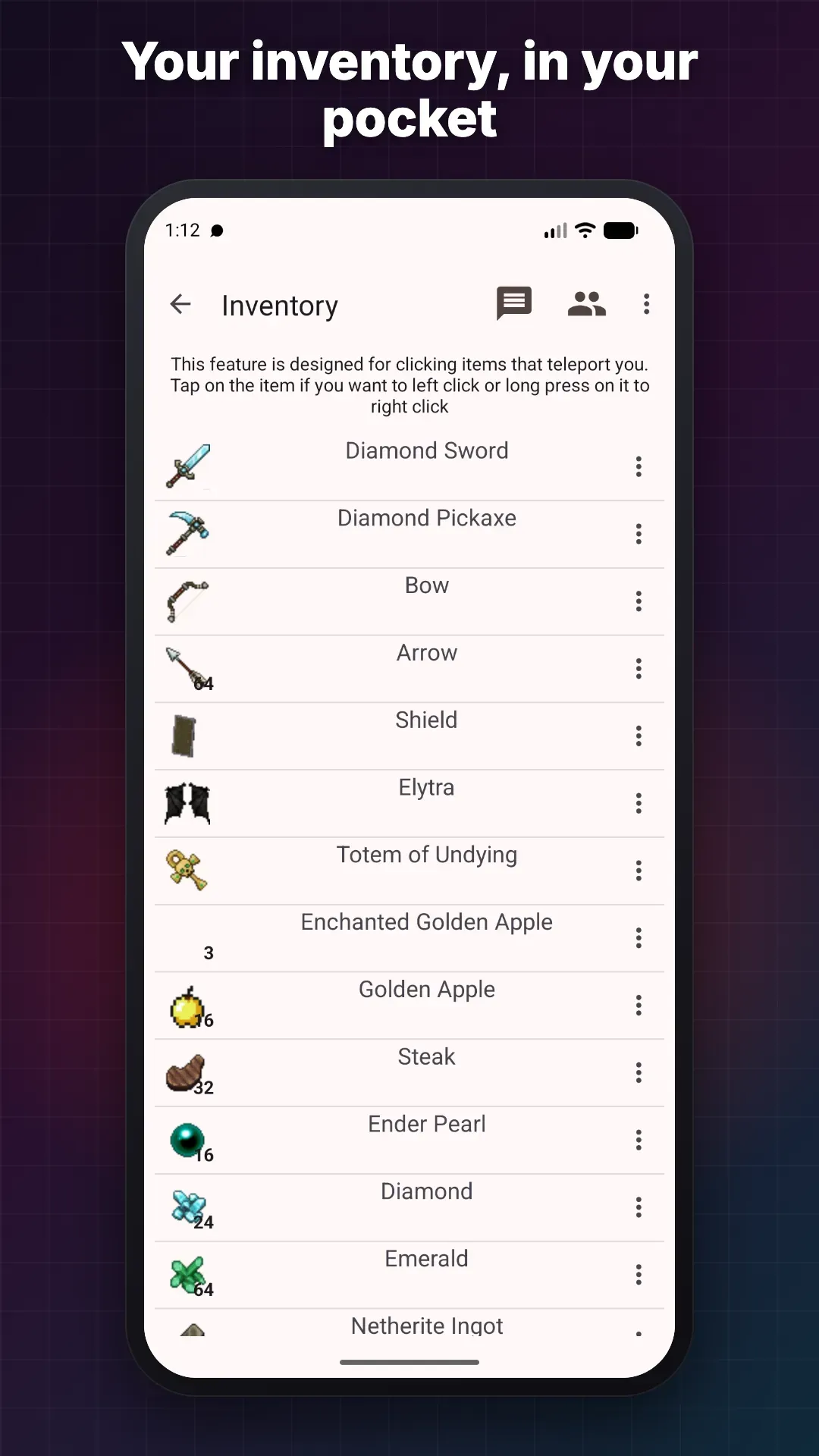
When a server opens a chest, shop, or menu window in the Inventory tab, you can schedule repeated clicks on a specific slot:
- Open the Inventory tab while connected to your server.
- Tap an item slot and choose Scheduled clicks.
- Pick Left click or Right click and choose an interval from 1 to 60 seconds or minutes.
- Cancel the schedule at any time from the same item menu.
Scheduled inventory clicks are a Pro (in chat) control: they are included with ChatCraft Pro, unlocked for your current chat screen by watching a reward ad, or unlocked while playing on a sponsored server.
Alerts and notifications
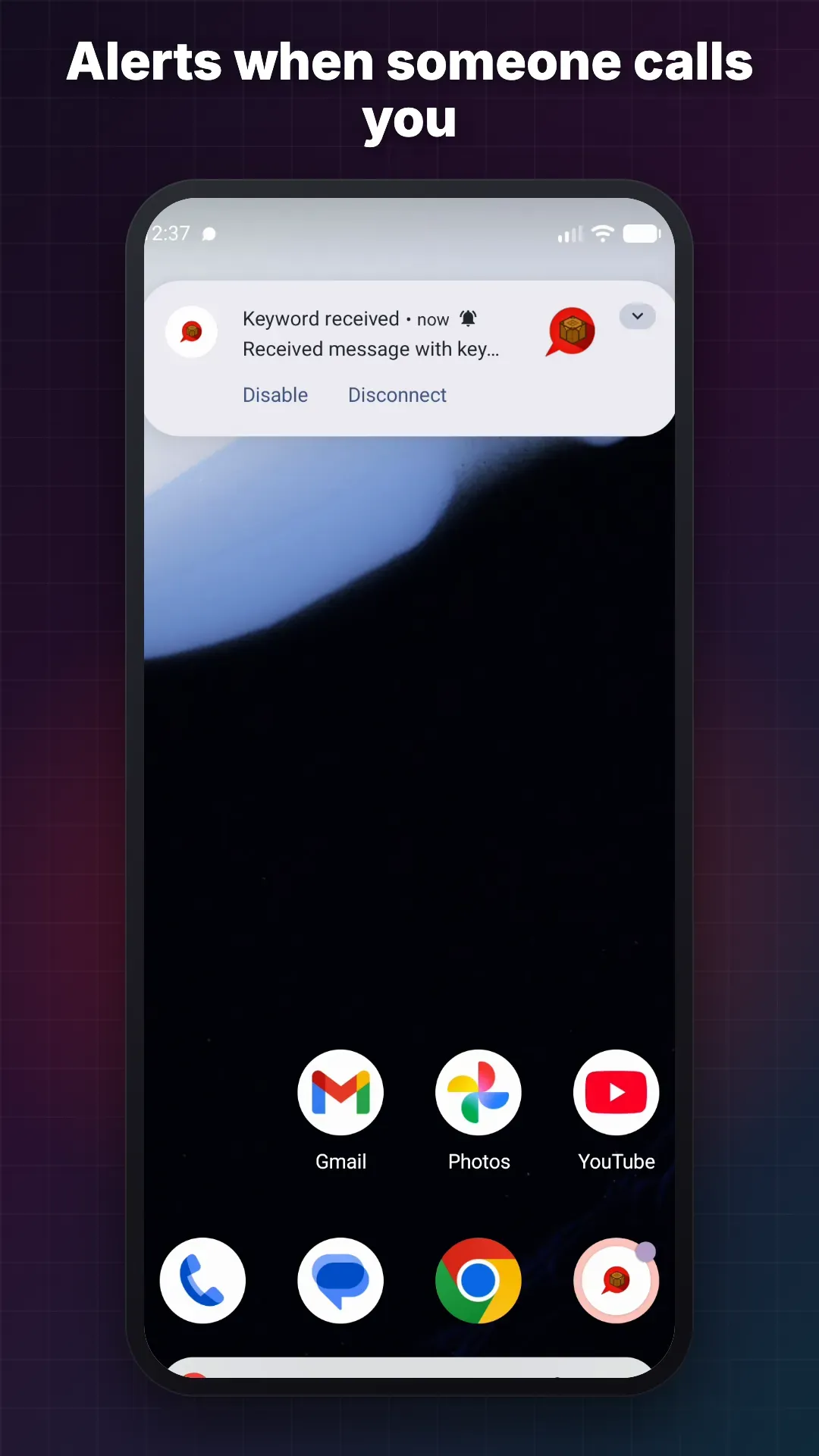
ChatCraft can alert you even while you are away from the chat screen, as long as your session stays connected:
- Keyword notifications (Pro setting): Get notified whenever a chat message contains a word you configured in Settings > Notifications > Words you want to be notified for. Works while the app is closed as long as the session remains connected (or on a paired ChatCraft Computer). Regular expressions, per-keyword sounds, and quiet hours are not supported.
- Health decreasing notification (Free): Sends a notification when your health drops. Enabled by default.
- Connected notification (Free): Shows an ongoing notification while connected, including a quick Disconnect button.
Safety automations for AFK sessions
With ChatCraft Pro, additional staying-online settings live under Settings > In game settings (and can be toggled together with AFK mode):
- Disconnect on low health: Automatically disconnects when your health falls below a chosen threshold (
1to9hearts;0turns it off). It does not reconnect afterward and takes priority over automatic respawn. - Respawn automatically: Automatically respawns your character after death.
- Auto-reconnect: Reconnects after a kick, restart, or network drop (default
10seconds delay; multiple sessions are spaced30seconds apart). - Anti-AFK move: Steps one way and back every two minutes (Settings > In game settings > Move automatically every two minutes).
Staying connected longer
Background connections behave differently on Android and iPhone/iPad:
- Read the Staying Online & AFK guide for Android wakelock setup, battery-saver tips, and Android’s ~6-hour foreground service limit.
- Use ChatCraft Computer for reliable 24/7 sessions and push alerts on both Android and iOS (including disconnect, low health, keyword, duplicate login, Microsoft sign-in expired, and computer offline alerts).